How to Split a PDF: Extract Pages or Break It Into Separate Files
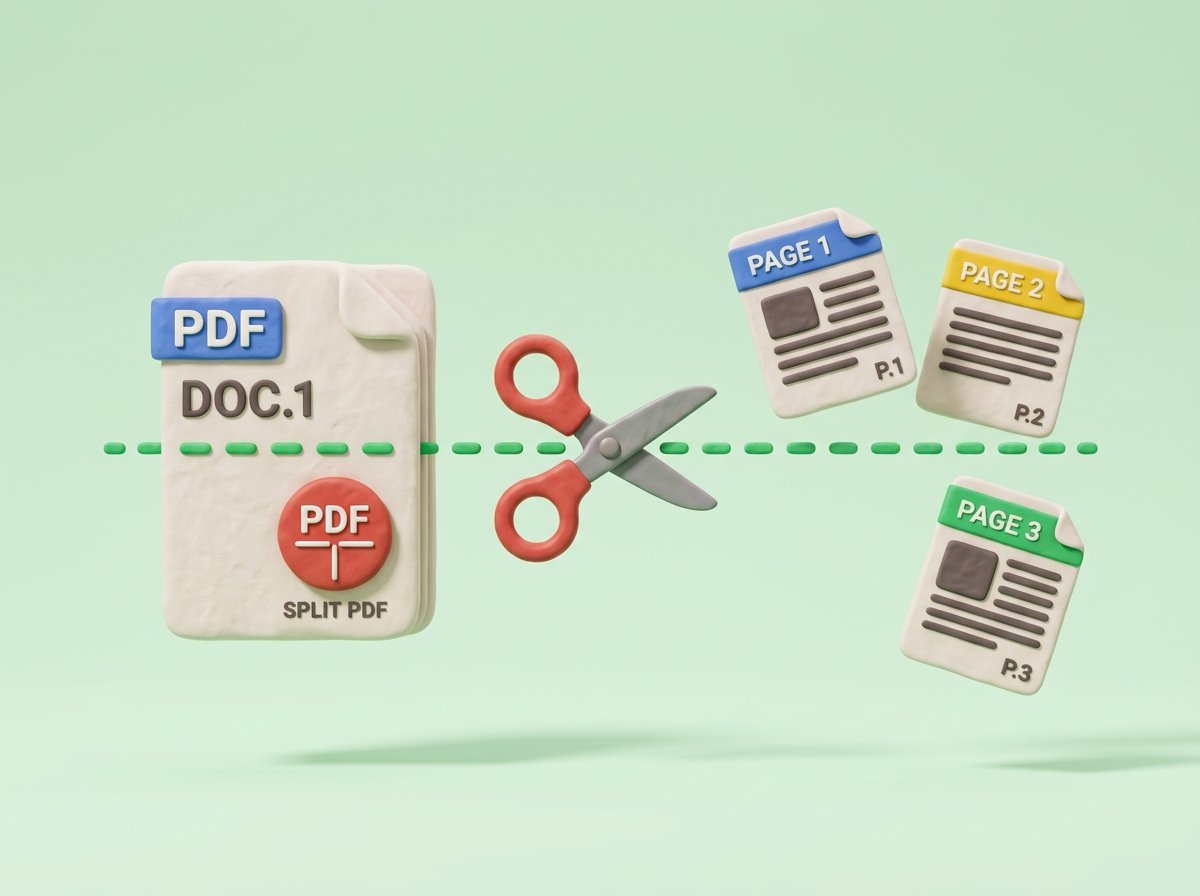
Split a PDF into separate files or pull out just the pages you need. Step-by-step guide with page range examples, tips and fixes.
To split a PDF, open the Split PDF tool, add your file, choose the pages or ranges you want, and download the result. You can pull out a single page, a range such as pages 5 to 10, or break a long document into several smaller files.
If you want to split PDF pages online without installing anything, this works from any browser. People split PDFs to send just one section, to remove pages they do not need, or to get under an upload limit. This guide explains the options and gives page range examples you can copy.
The short version
- Open the Split PDF tool and add your PDF.
- Choose the pages or ranges you want to keep or separate.
- Download the new file or files and check the pages.
Below you will find when to split a PDF, how page ranges work, the different ways to split, and fixes for common problems.
When you need to split a PDF
- You only need to send one section of a long document, such as a single chapter or invoice.
- A form allows a limited number of pages or a small file size.
- A scan contains several documents in one file and you want to separate them.
- You want to remove pages, such as a blank page or a cover sheet.
- You want to reorder a document by splitting it and then putting it back together with Merge PDF.
How to split a PDF
- Open the Split PDF tool.
- Upload your PDF by dragging it in or choosing it from your device.
- Choose how to split it: by page range, by selecting pages, or into separate pages, depending on what the tool offers.
- Enter or select the pages you want.
- Start the split and download the result.
- Open the new file and check that the right pages are there.
Keep your original file untouched until you have checked the new one.
Ways to split a PDF
| What you want | How to describe it | Example |
|---|---|---|
| One page | A single page number | Page 7 only |
| A range of pages | First page to last page | Pages 3 to 6 |
| Several separate pages | Each page number | Pages 1, 4 and 9 |
| Mix of both | Ranges and single pages | Pages 1 to 3 and page 8 |
| Every page as its own file | Split into single pages | A 10 page PDF becomes 10 files |
| Equal parts | Split at fixed intervals | A 20 page PDF into four files of 5 pages |
When you use a page range, count pages by their position in the PDF, not by the number printed on the page. If the document has a cover and a table of contents, "page 1" in the file may be page iv in print.
Page range cheat sheet
- First 5 pages: pages 1 to 5.
- Last 3 pages of a 12 page file: pages 10 to 12.
- Everything except page 4: pages 1 to 3 and pages 5 to the end.
- Odd pages only: select pages 1, 3, 5 and so on.
- A single chapter: note the first and last page of the chapter in a PDF viewer, then use that range.
Open the PDF in your viewer first and write down the page numbers. It takes a minute and avoids splitting twice.
Tips for clean results
- Check the page count before you start so you do not ask for a page that does not exist.
- Give each output file a clear name, such as "invoice-march" instead of a long default name.
- If you want to remove a few pages instead of extracting some, select all the pages you want to keep.
- If the result is still too big for an upload, use Compress PDF on it afterwards.
- If you split a scan, page order stays the same as in the original.
Fixes for common problems
- Wrong pages in the result: the page number in the PDF is different from the number printed on the page. Count from the first page of the file.
- File is password protected: remove the password first, using the app that created it, then try again.
- Result still too big: compress it with Compress PDF, or split into more parts.
- Pages out of order: split the document, then put the parts back in the order you want with Merge PDF.
- Blank page in the result: the original file had a blank page. Split again without it.
Frequently asked questions
How do I split a PDF into separate pages?
Open the Split PDF tool, upload your file and choose the option that makes each page its own file. Then download the result.
How do I split PDF pages online?
Open the Split PDF tool in your browser, upload the file, choose the pages or ranges and download the result.
How do I extract pages from a PDF?
Choose the pages you want, such as 3 to 6, and download them as a new PDF.
How do I split a PDF by page range?
Enter the first and last page of the range you want, such as pages 5 to 10.
Can I split a PDF on my phone?
Yes. Open the tool in your phone's browser, upload your file and download the result.
Does splitting a PDF reduce quality?
Splitting only separates pages, so the pages themselves are not changed.
How do I delete pages from a PDF?
Split the file and keep only the pages you want, or extract the range you need as a new PDF.
How do I split a large PDF to make it smaller?
Split it into parts, and use Compress PDF on each part if it is still above the limit.
How do I put the pages back together?
Use Merge PDF to combine the files in the order you want.
Related tools
- Split PDF: extract pages or break a PDF into parts.
- Merge PDF: combine files into one PDF.
- Compress PDF: make a PDF smaller for uploads.
- PDF to Word: edit the text in a PDF.
- JPG to PDF: turn photos into a PDF.
Ready to try it? Split your PDF now.